

Find your way around
The canvas in the middle is your dashboard. Select an item to change its position, content or appearance using the controls around it.
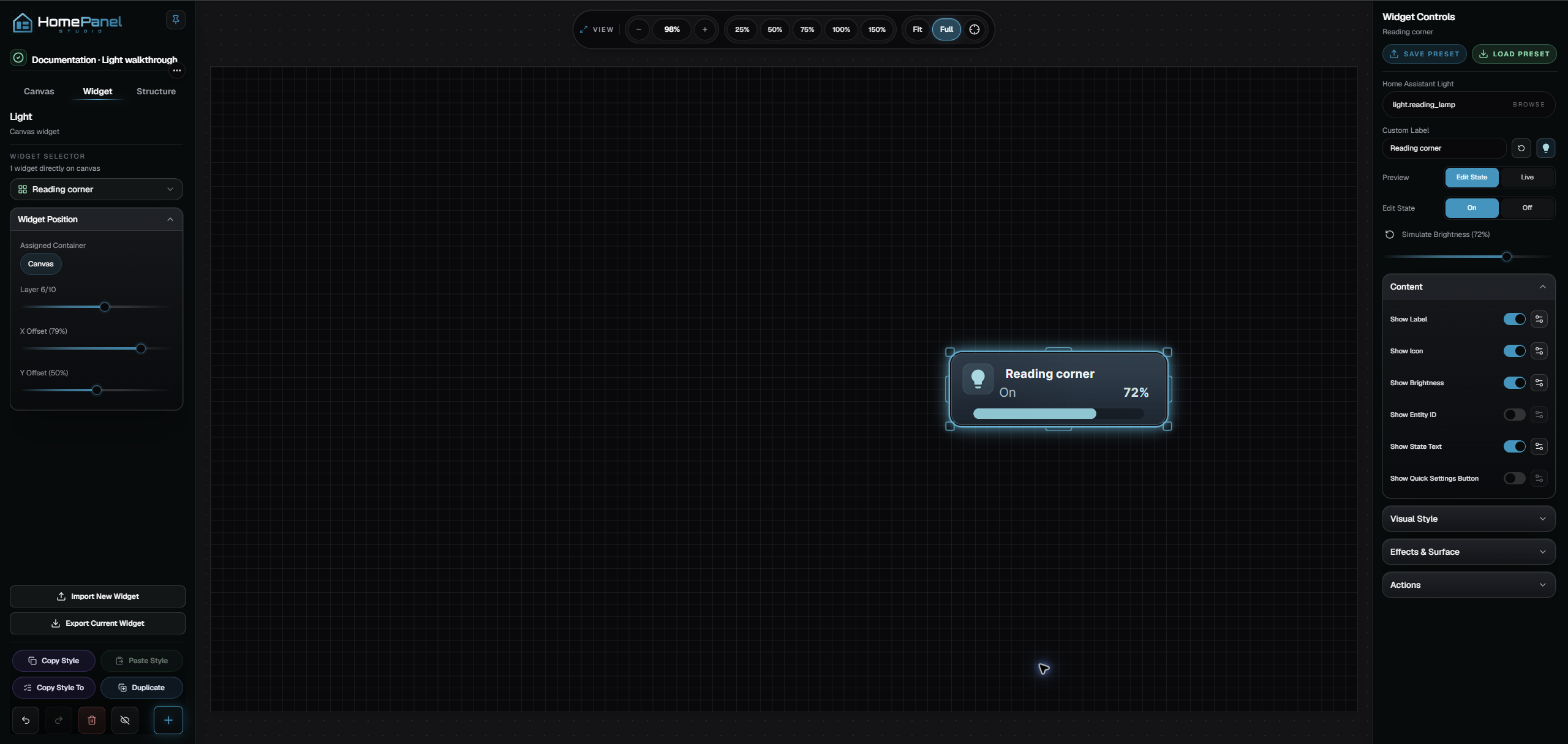
Canvas, Widget and Structure
Section titled “Canvas, Widget and Structure”The left panel helps you work at three levels:
- Canvas controls the overall design, including its dimensions and background.
- Widget helps you position and size the selected item.
- Structure shows how the items in your dashboard are organized. Use it to find something that’s difficult to select on the canvas.
The right panel changes with your selection. Select a Light widget to see its device assignment, label, content and appearance controls. Selecting a different type of widget shows the settings for that type.
Presets and individual elements
Section titled “Presets and individual elements”A preset gives a widget an initial design. It doesn’t lock that design in place.
Inside a Light widget, the label, icon, brightness display and other content have their own settings. Moving the label doesn’t have to move the icon. Changing the background doesn’t have to change the brightness control. You can keep a preset almost as it is or build a different composition from those parts.
On and Off are separate design checks
Section titled “On and Off are separate design checks”For a Light widget, Edit State chooses whether you’re working on its On or Off appearance. With Preview set to Edit State, the editor shows the state you’re designing.
Live follows the device’s reported state instead. It can show an Off light while you’re editing its On appearance, so choose Edit State when you want to see the appearance you’re changing.
The simulated editor appearance doesn’t change the physical light. The interactive dashboard preview can send commands to connected devices.
Saving your work
Section titled “Saving your work”The editor saves changes automatically. Check its save indicator before leaving, and reopen the canvas when you want to confirm that a design has been retained.
If the editor reports a saving problem, export your current canvas before closing it. The canvas menu in the upper-left corner provides the export option.
Make your first widget
Section titled “Make your first widget”Continue with Add and customize a light. You’ll start from a preset, choose what appears on the card and give it an On and Off treatment.